
Manage Users & Roles
StatStream uses role-based access control (RBAC) to manage permissions across the platform. Users can be invited to an organization, assigned to one or more workspaces, and granted roles that determine the actions they can perform.
Organization-level roles control administrative capabilities across the entire organization, while workspace roles define permissions within individual workspaces.
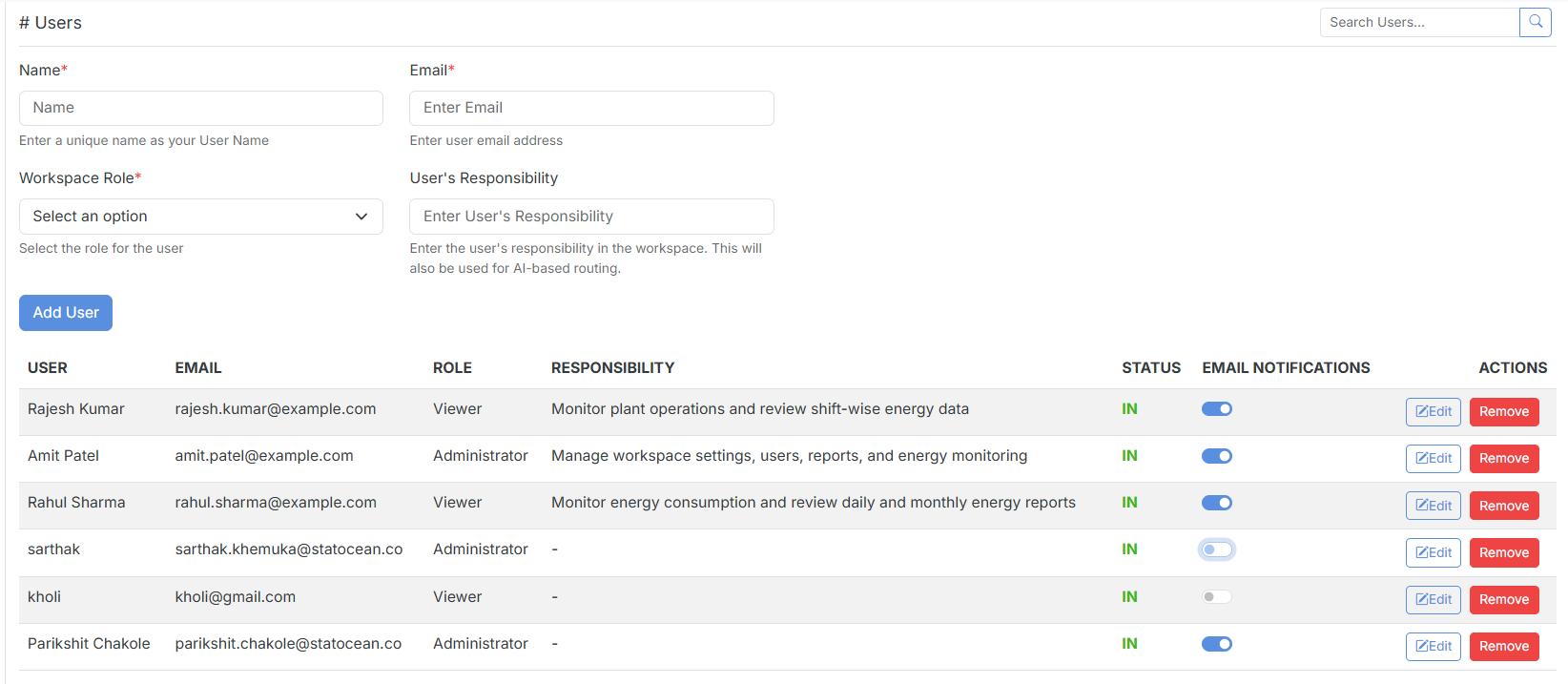
Invite Users
Section titled “Invite Users”Users can be invited either to the organization or directly to a workspace, depending on the level of access required.
Invite to a Workspace
Section titled “Invite to a Workspace”To add a user to a workspace:
- Go to Admin → Users.
- Click Add User.
- Enter the required information.
- Click Save.
| Field | Description |
|---|---|
| Name | User’s display name. |
| The user’s email address. | |
| Workspace Role | Role assigned within the workspace. |
| User Responsibility | Specifies the user’s area of responsibility. |
Invite to an Organization
Section titled “Invite to an Organization”Only Organization Administrators can invite users to an organization.
To invite a user:
- Go to Manage Organization → Team Members.
- Click Add / Invite.
- Enter the user’s details.
- Click Save.
From here, click into any team member to configure both their Organization Role and their Workspace Role(s) — including which workspace(s) they’re assigned to and their responsibility within each.
Workspace Roles
Section titled “Workspace Roles”Workspace roles determine the level of access a user has within a workspace.
Administrator
Section titled “Administrator”Provides complete administrative access to the assigned workspace.
Permissions
Section titled “Permissions”- Manage devices and variables
- Manage credentials
- Configure dashboards
- Create Actions and Alert Rules
- Schedule reports
- View Audit Trail
- Manage workspace users
- Manage assets
- Upload files and images
- Add comments
Config Manager
Section titled “Config Manager”Allows users to configure dashboards and automation without granting full administrative access.
Permissions
Section titled “Permissions”- Create, edit and view dashboards
- View device history
- View alerts
- Configure Actions
- Configure Alert Rules
- Schedule reports
Viewer / Requestor
Section titled “Viewer / Requestor”Provides read-only access with limited collaboration capabilities.
Permissions
Section titled “Permissions”- View dashboards
- View device history
- View alerts
- Comment on assets
Dashboard Viewer
Section titled “Dashboard Viewer”Provides access only to dashboards shared with the user’s assigned teams.
Permissions
Section titled “Permissions”- View dashboards assigned to their teams
- No access to dashboards that are not shared with their teams