
Viewing a Diagram
Once a diagram has been built on the Design Canvas and given Placements, it can be opened in a clean, read-only view — showing the diagram with all its placements displaying live data, with no editing controls.
Accessing a diagram’s view
Section titled “Accessing a diagram’s view”There are two ways to open a diagram’s live view:
- Dashboard/diagram switcher — Click the dashboard/diagram name dropdown (top-left of any dashboard) and look under Diagrams to jump directly into any diagram’s live view.
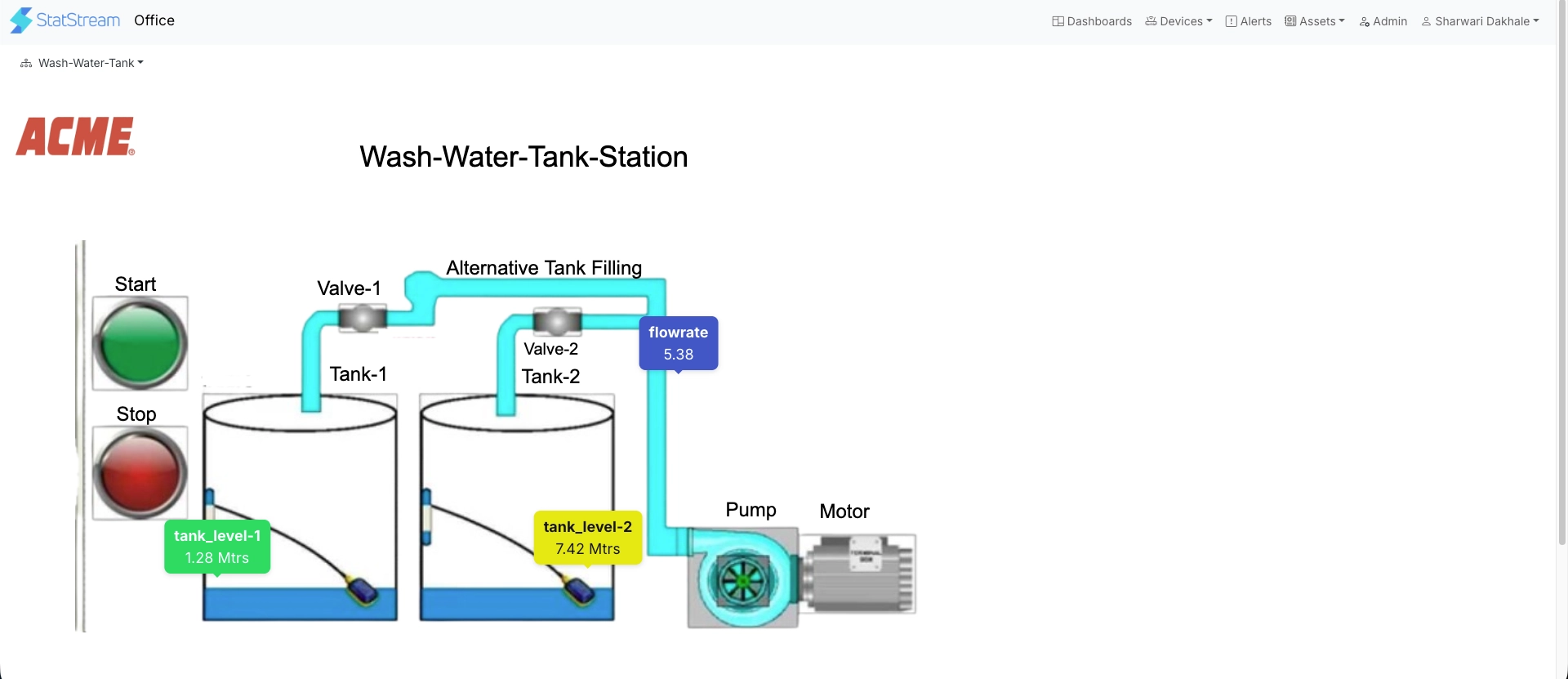
- Diagrams management page — Go to Diagrams in the left sidebar, find the diagram in the list, and click View.

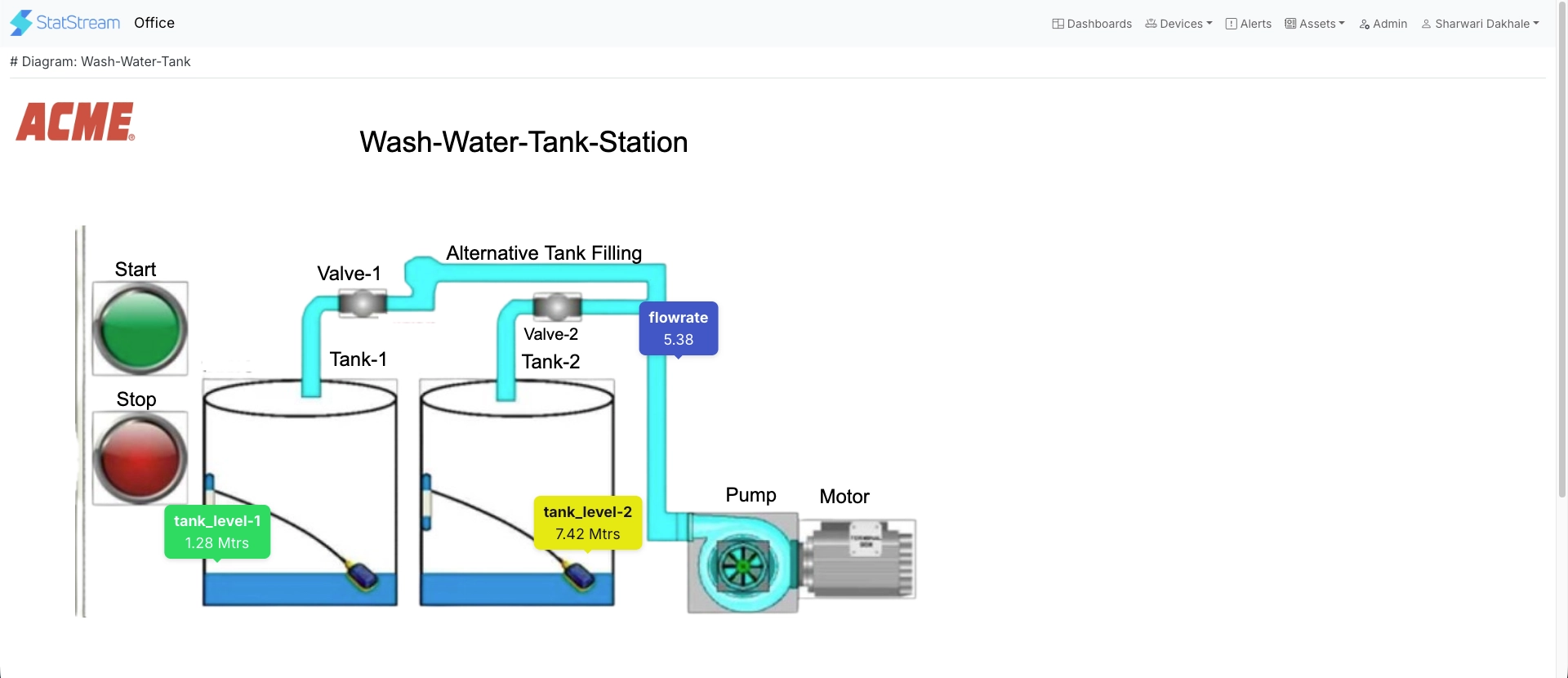
This view is well suited to:
- A wall-mounted or kiosk display for continuous monitoring.
- Sharing a quick visual status check with someone who doesn’t need editing access.
All placements update live in this view — for example, a Variable Placement continues to reflect the variable’s current value, and a Clock component continues to update in real time, exactly as they would while editing.