
Actual Variables
An Actual Variable represents a real, measured value coming directly from a device — a sensor reading, a meter value, or any raw telemetry point. This is the most common variable type used for live monitoring.
Creating an Actual Variable
Section titled “Creating an Actual Variable”- From the top bar, click Admin.
- Click Devices.
- Select the specific device.
- Click New Variable.
- Choose Actual.
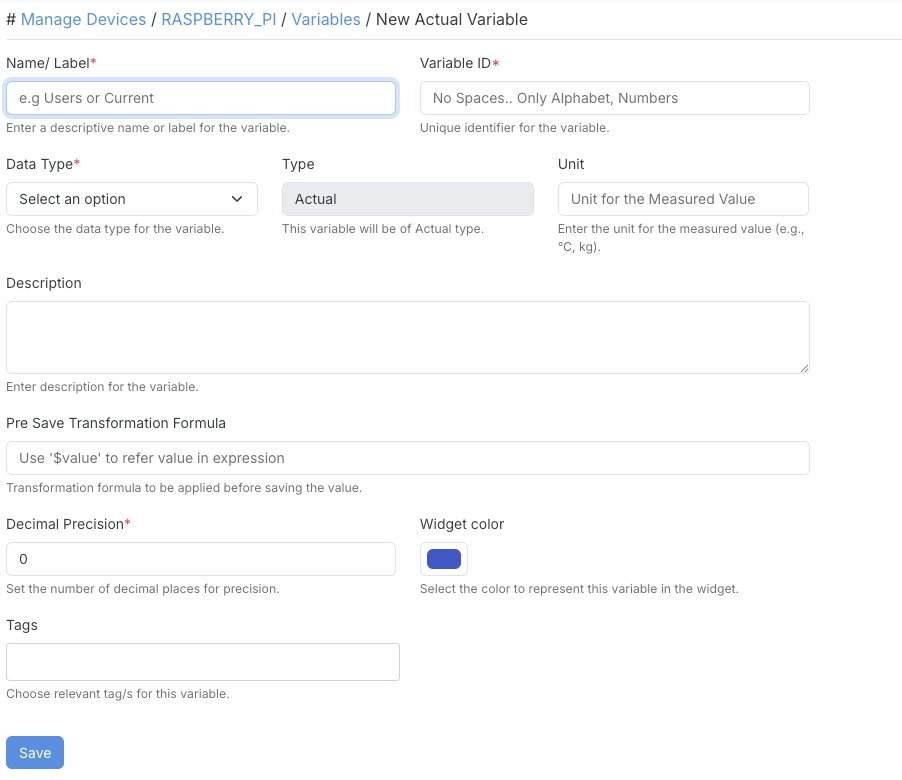
Then fill in:
| Field | Description |
|---|---|
| Name/Label | A descriptive name or label for the variable (e.g. Users or Current). |
| Variable ID | A unique identifier for the variable. No spaces — letters and numbers only. |
| Data Type | The data type for the variable — Float/Number, Text, Boolean, or Increment Number. |
| Unit | The unit for the measured value (e.g. °C, kg). |
| Description | A description for the variable. |
| Pre Save Transformation Formula | A transformation formula applied before saving the value. Use $value to refer to the raw incoming value in the expression. |
| Decimal Precision | The number of decimal places to round the value to. |
| Widget Color | The color used to represent this variable in dashboard widgets. |
| Tags | Relevant tags for this variable. |
- The Pre Save Transformation Formula is useful for unit conversions or simple corrections — for example, converting a raw sensor value from millivolts to a calibrated engineering unit before it’s stored.
- Widget Color is used as the default color wherever this variable appears in charts and widgets, keeping it visually consistent across dashboards.