
Overview
Actions let StatStream perform automated tasks in response to alerts, schedules, or your own defined workflows — handling notifications, integrations, and data processing automatically whenever the conditions you set are met.
An Action is reusable: build it once, then attach it to as many Alert / Action Rules or Schedule Actions as you need.
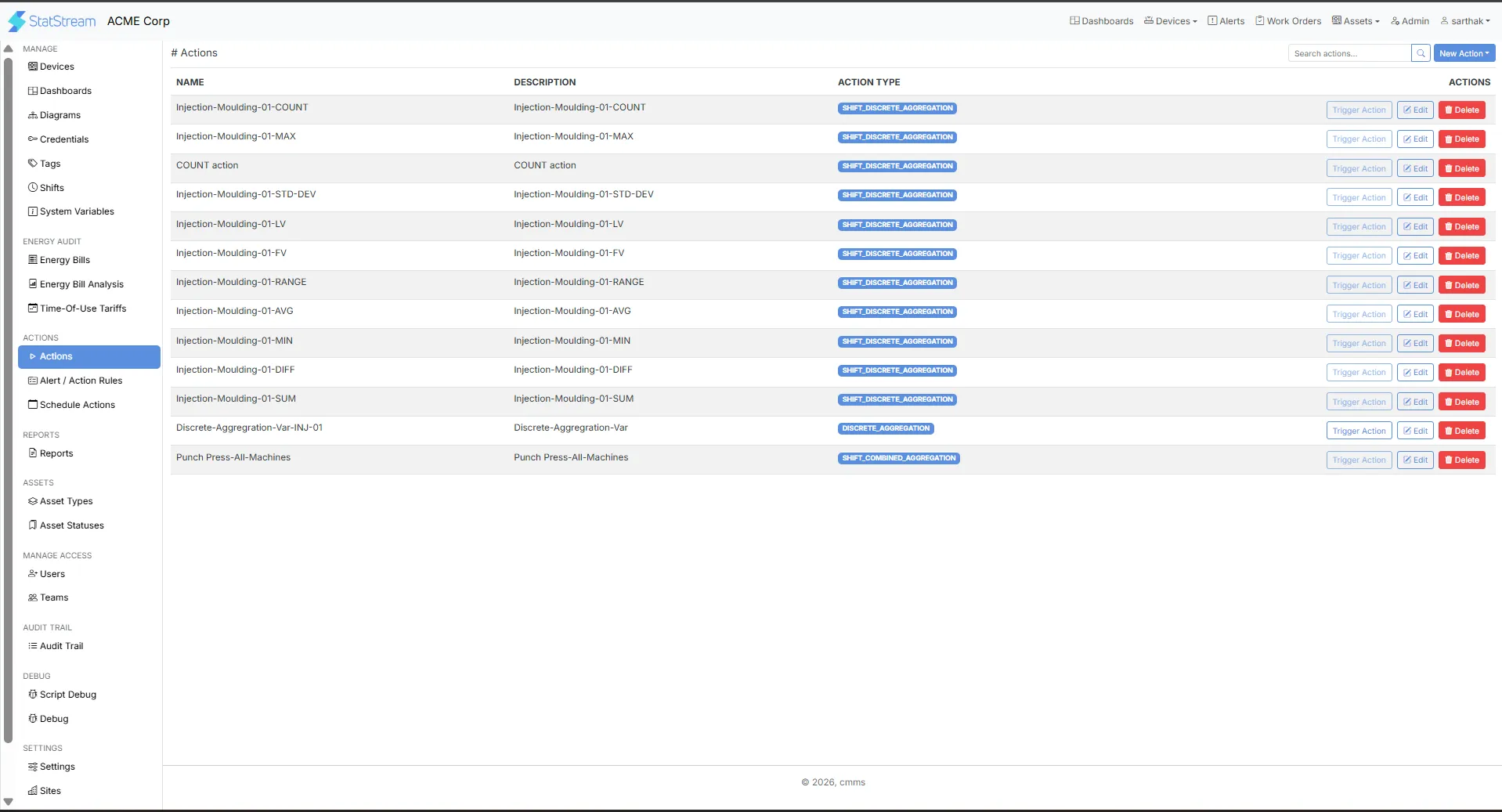
Creating an Action
Section titled “Creating an Action”Follow these steps to create a new Action in StatStream:
- Click Admin in the top-right corner of the Dasboard.
- From the left navigation panel, select Actions.
- On the Actions page, click New Action in the top-right corner.
- Select the Action you want to create from the available options.
- Configure the required settings for the selected Action.
- Click Save to create the Action.
- The Action is now available.
How Actions Work
Section titled “How Actions Work”- Create an Action that defines what should run.
- Attach the action to a trigger:
- An Alert / Action Rule, to run it when a condition is met, or
- A Schedule Action, to run it at a specific date or time.
- When the trigger fires, StatStream executes the action automatically.
Action Workflow
Section titled “Action Workflow” Create Action │ ▼ ┌──────────────────┐ │ Action │ └──────────────────┘ │ │ ▼ ▼ Alert / Action Schedule Rule Action │ │ └─────┬──────┘ ▼ Execute Action │ ▼ Notification • Integration • Aggregation • Asset • AI & ForecastTypes of Actions
Section titled “Types of Actions” Notification Actions Send notifications through Email, Google Chat, Telegram, Slack, WhatsApp, and the StatStream Mobile App.
Integration Actions Connect StatStream to external systems using Webhooks and MQTT Publish.
Aggregation Actions Perform standard, shift-based, and Time-of-Use (TOU) aggregations.
Asset Actions Update asset statuses and manage work orders automatically.
AI & Forecast Actions Forecast variables and generate AI-powered analysis.