
Placements
Placements are how a diagram becomes live — each placement pins a piece of data or an interactive control to a specific X/Y position on the canvas.
Managing placements
Section titled “Managing placements”The Placements page for a diagram lists every placement currently on it:
| Column | Description |
|---|---|
| Placement | The X, Y coordinates of the placement on the canvas. |
| Item | The variable or content the placement displays. |
| Placement Type | The type of placement — Variable, Text, List, or Action Button. |
| Actions | Delete the placement. |
Click New Placement to add one, then choose a type:
- Variable Placement
- Text Variable Placement
- List Variable Placement
- Action Button Placement
Variable Placement
Section titled “Variable Placement”Displays a single variable’s live value directly on the diagram.
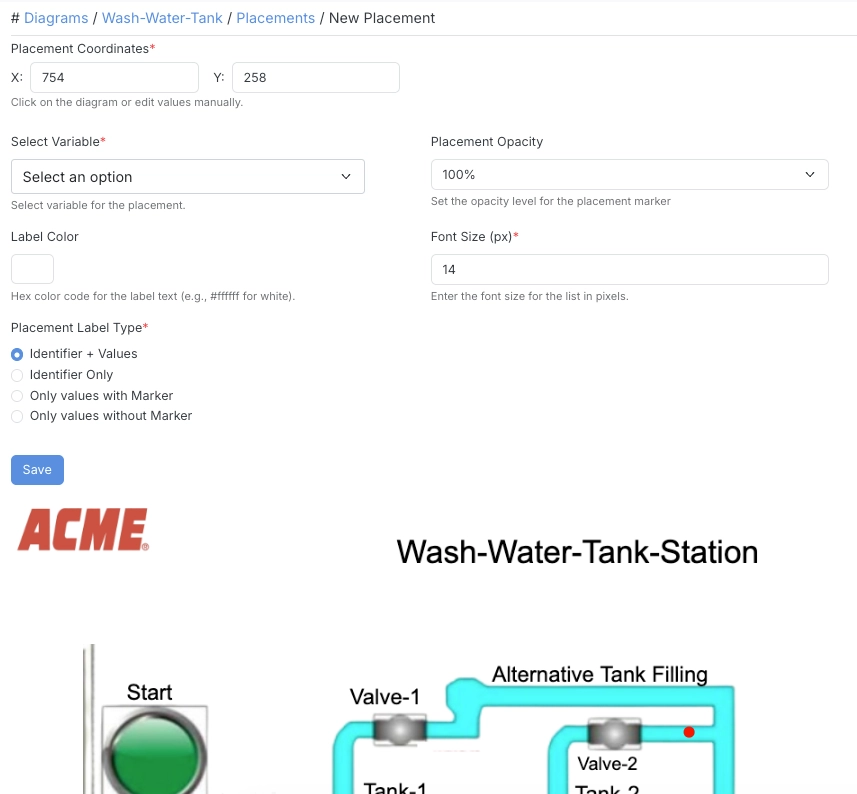
| Field | Description |
|---|---|
| Placement Coordinates (X, Y) | Position on the diagram. Click the image or enter coordinates manually. |
| Select Variable | The variable to display. |
| Placement Opacity | Transparency of the placement marker. |
| Label Color | Hex color code for the label text (e.g. #ffffff for white). |
| Font Size (px) | Font size for the label. |
| Placement Label Type | How the value is displayed — see below. |
Placement Label Type
Section titled “Placement Label Type”| Option | Description |
|---|---|
| Identifier + Values | Shows both the variable’s name/identifier and its current value. |
| Identifier Only | Shows just the variable’s name/identifier. |
| Only values with Marker | Shows just the value, with a marker pin. |
| Only values without Marker | Shows just the value, with no marker. |
Text Variable Placement
Section titled “Text Variable Placement”Displays custom text or a keyword based on the variable’s current value — useful for mapping raw values (like 0/1) to human-readable labels (like “OFF”/“ON”) with distinct colors.
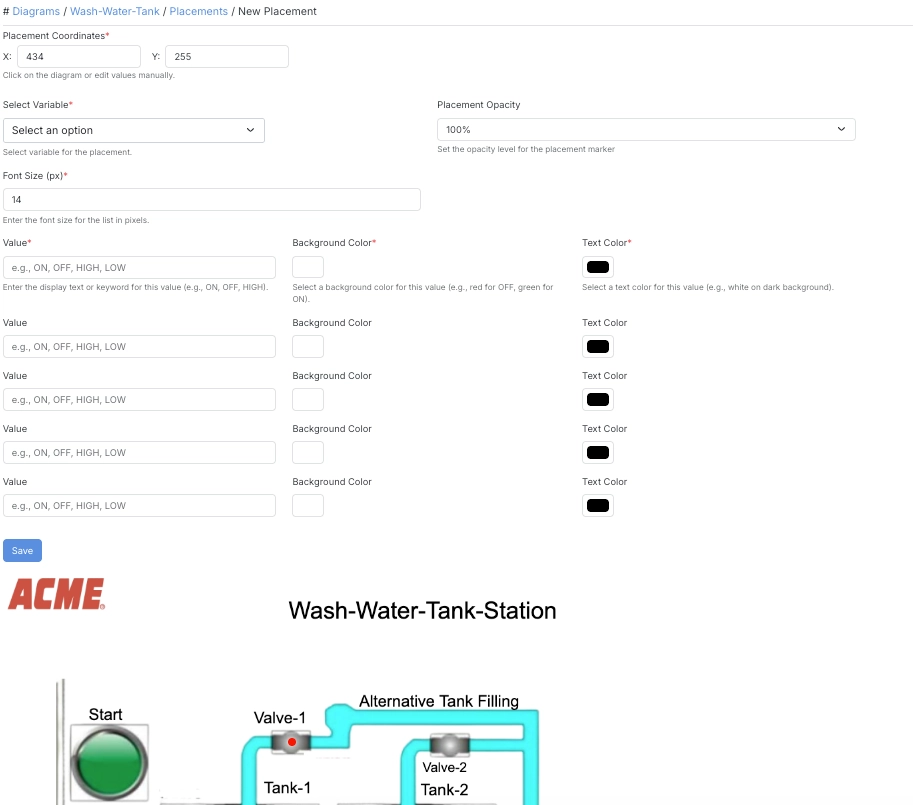
| Field | Description |
|---|---|
| Placement Coordinates (X, Y) | Position on the diagram. |
| Select Variable | The variable whose value determines which mapping below is shown. |
| Font Size (px) | Font size for the displayed text. |
| Value | The display text or keyword for this value (e.g. ON, OFF, HIGH, LOW). |
| Background Color | Background color for this value (e.g. red for OFF, green for ON). |
| Text Color | Text color for this value (e.g. white on a dark background). |
Up to 5 Value / Background Color / Text Color mappings can be configured per placement.
List Variable Placement
Section titled “List Variable Placement”Displays multiple variables together as a labeled list at a single point on the diagram.
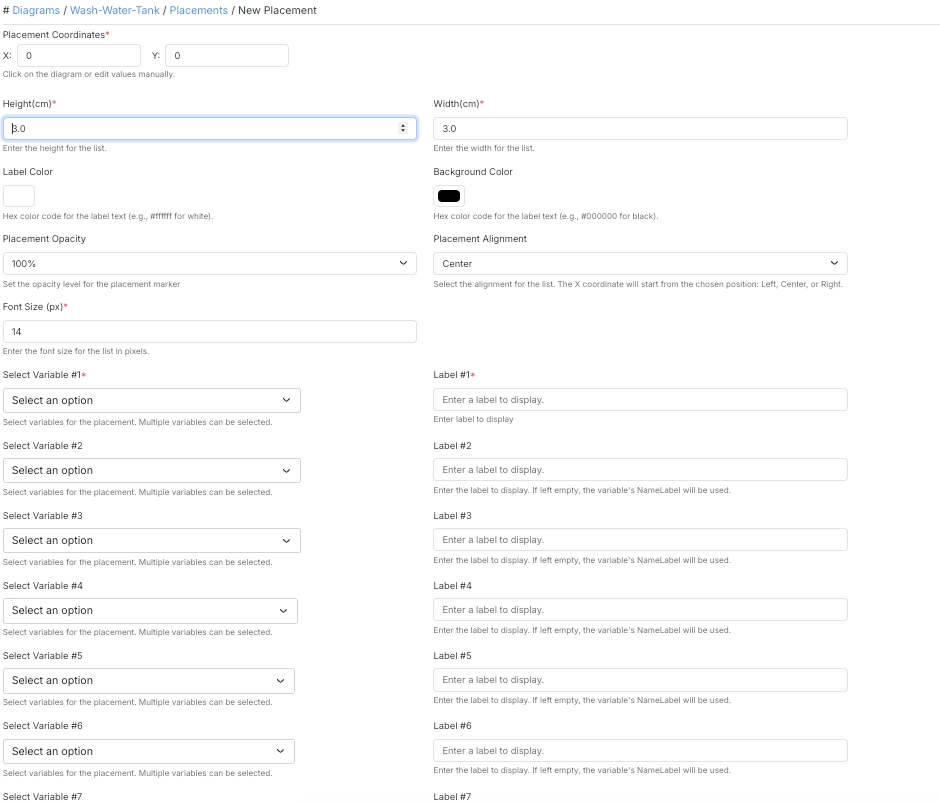
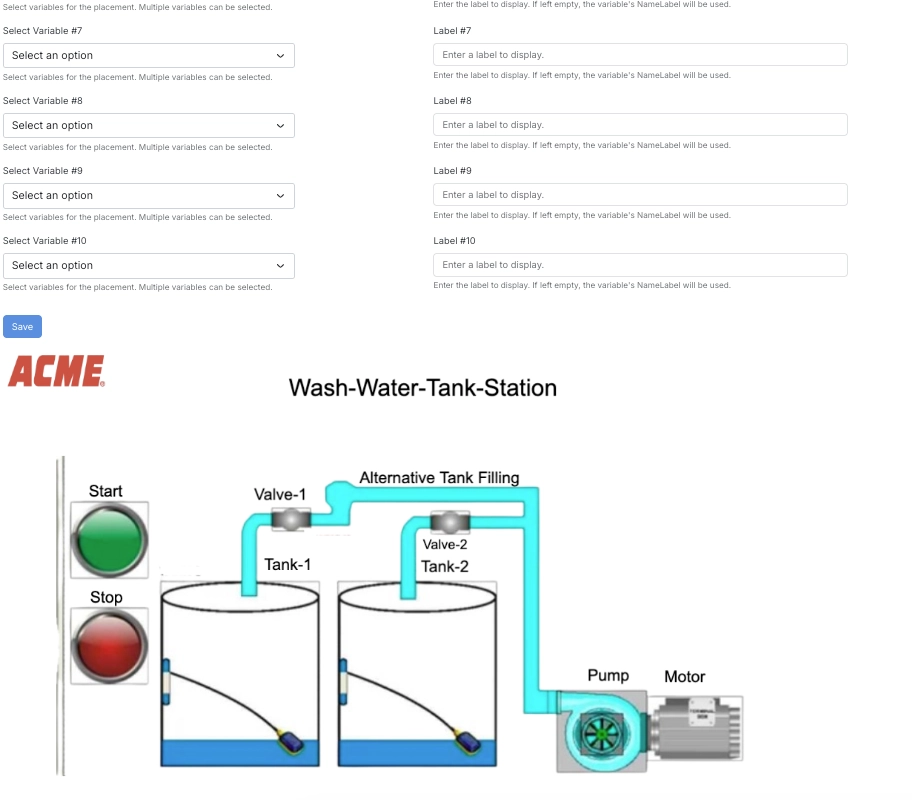
| Field | Description |
|---|---|
| Placement Coordinates (X, Y) | Position on the diagram. |
| Height (cm) / Width (cm) | Dimensions of the list on the diagram. |
| Label Color | Hex color code for the label text. |
| Background Color | Hex color code for the list background. |
| Placement Opacity | Transparency of the placement marker. |
| Placement Alignment | Left, Center, or Right — the X coordinate is anchored from the chosen alignment. |
| Font Size (px) | Font size for the list. |
| Select Variable #1–10 | Up to 10 variables to include in the list. |
| Label #1–10 | Custom label for each variable. If left empty, the variable’s NameLabel is used. |
Action Button Placement
Section titled “Action Button Placement”Places an interactive button on the diagram that triggers a configured action when clicked.
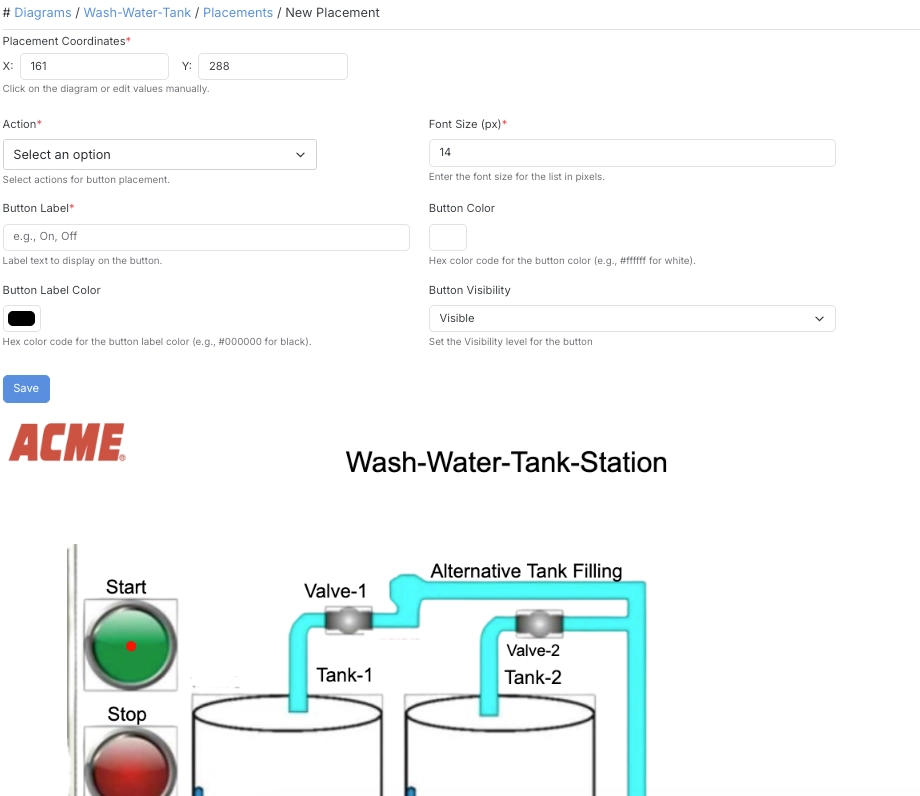
| Field | Description |
|---|---|
| Placement Coordinates (X, Y) | Position on the diagram. |
| Action | The action to execute when the button is clicked. |
| Font Size (px) | Font size for the button label. |
| Button Label | Label text to display on the button (e.g. On, Off). |
| Button Color | Hex color code for the button (e.g. #ffffff for white). |
| Button Label Color | Hex color code for the button’s label text. |
| Button Visibility | Set the visibility level for the button. |