
Manage Assets
The Manage Assets feature allows you to view, organize, and maintain asset information throughout its lifecycle. From the Assets List, you can quickly access any asset to view its details, monitor its status, manage supporting information, and organize relationships between assets.
Key capabilities include:
- Search and filter assets
- View detailed asset information
- Edit asset details
- Organize assets using hierarchy
- Track asset history and depreciation
- Manage images, files, and related assets
Access the Assets List
Section titled “Access the Assets List”Follow these steps to access and manage your assets:
- Navigate to Assets from the top navigation bar.
- Select Assets.
- The Assets List displays all registered assets in your workspace.
- Use the Search bar or Filters to quickly locate an asset.
- Click Asset Name to open its details or click Edit to modify the asset.
Assets List
Section titled “Assets List”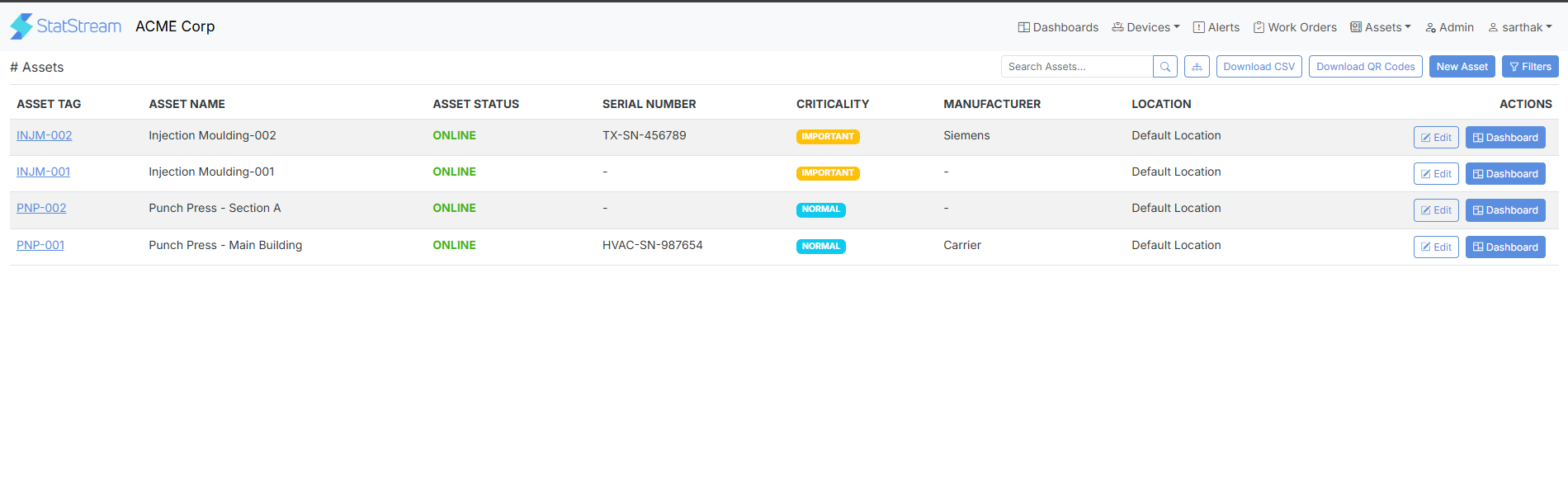
Asset Hierarchy
Section titled “Asset Hierarchy”The Asset Hierarchy feature helps you visualize the relationship between Parent and Child assets, making it easier to organize complex systems and understand equipment dependencies.
To access the Asset Hierarchy:
- Click Assets in the top navigation.
- From the dropdown, select Assets.
- Click the
Using the Asset Hierarchy, you can:
- Visualize parent-child relationships between assets.
- Expand or collapse asset groups.
- Navigate through connected assets.
- Better understand the structure of complex equipment and systems.
Asset Details
Section titled “Asset Details”Clicking an asset opens the Asset Details page, where you can view complete information about the selected asset.
The Asset Details page includes:
- Asset Name
- Asset ID
- Asset Tag
- Asset Type
- Asset Owner
- Asset Status
- Criticality
- Location
- QR Code
- Manufacturing Details
- Depreciation Information
Asset Details
Section titled “Asset Details”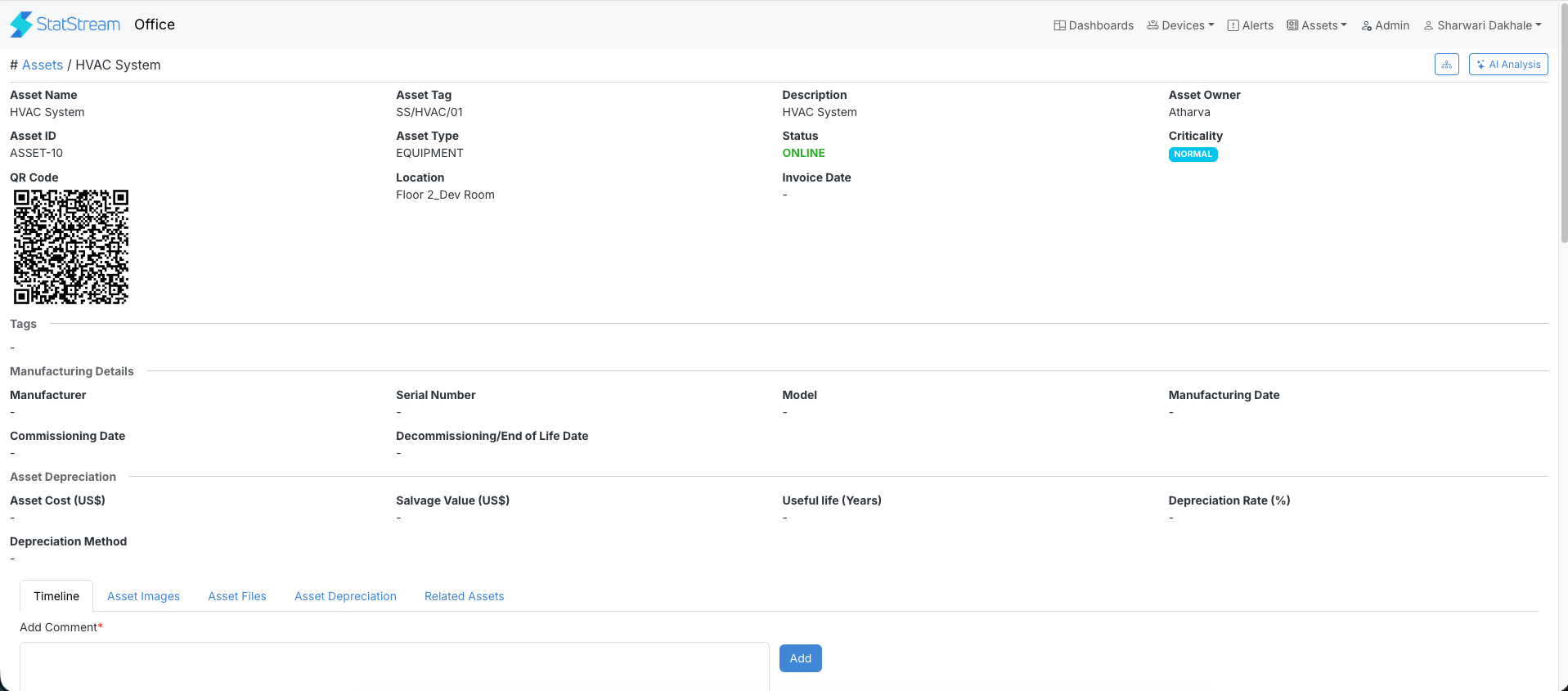
Asset Operations
Section titled “Asset Operations”The Asset Details page provides dedicated sections for managing and maintaining all information related to an asset.
Timeline
Section titled “Timeline”The Timeline section helps you track the complete lifecycle of an asset, including:
- Maintenance activities
- Repairs and inspections
- Operational updates
- Asset history
Asset Images
Section titled “Asset Images”The Asset Images section allows you to:
- Upload asset photographs
- Manage existing images
- Improve asset identification
Asset Files
Section titled “Asset Files”The Asset Files section lets you attach important documents, such as:
- User manuals
- Warranty documents
- Purchase invoices
- Inspection reports
- Compliance certificates
Asset Depreciation
Section titled “Asset Depreciation”The Asset Depreciation section provides information about the asset’s financial lifecycle, including:
- Depreciation details
- Asset value over time
- Useful life information
Related Assets
Section titled “Related Assets”The Related Assets section helps you:
- View associated assets
- Understand asset relationships
- Navigate between connected assets
Comments
Section titled “Comments”The Comments section allows users to:
- Add maintenance notes
- Record observations
- Share operational updates
- Improve team collaboration