
Asset Statuses
The Asset Statuses feature allows you to define the operational state of an asset. Statuses help users quickly identify an asset’s current condition and improve tracking, maintenance planning, and reporting.
Common examples include:
- Online
- Offline
- Under Maintenance
- Decommissioned
- In Service
- Out of Service
Each status can be assigned a unique color, making it easier to identify an asset’s condition at a glance.
View Asset Statuses
Section titled “View Asset Statuses”To view the available asset statuses:
- Navigate to Admin from the top navigation bar.
- In the left sidebar, under the Assets section, click Asset Statuses.
Asset Statuses
Section titled “Asset Statuses”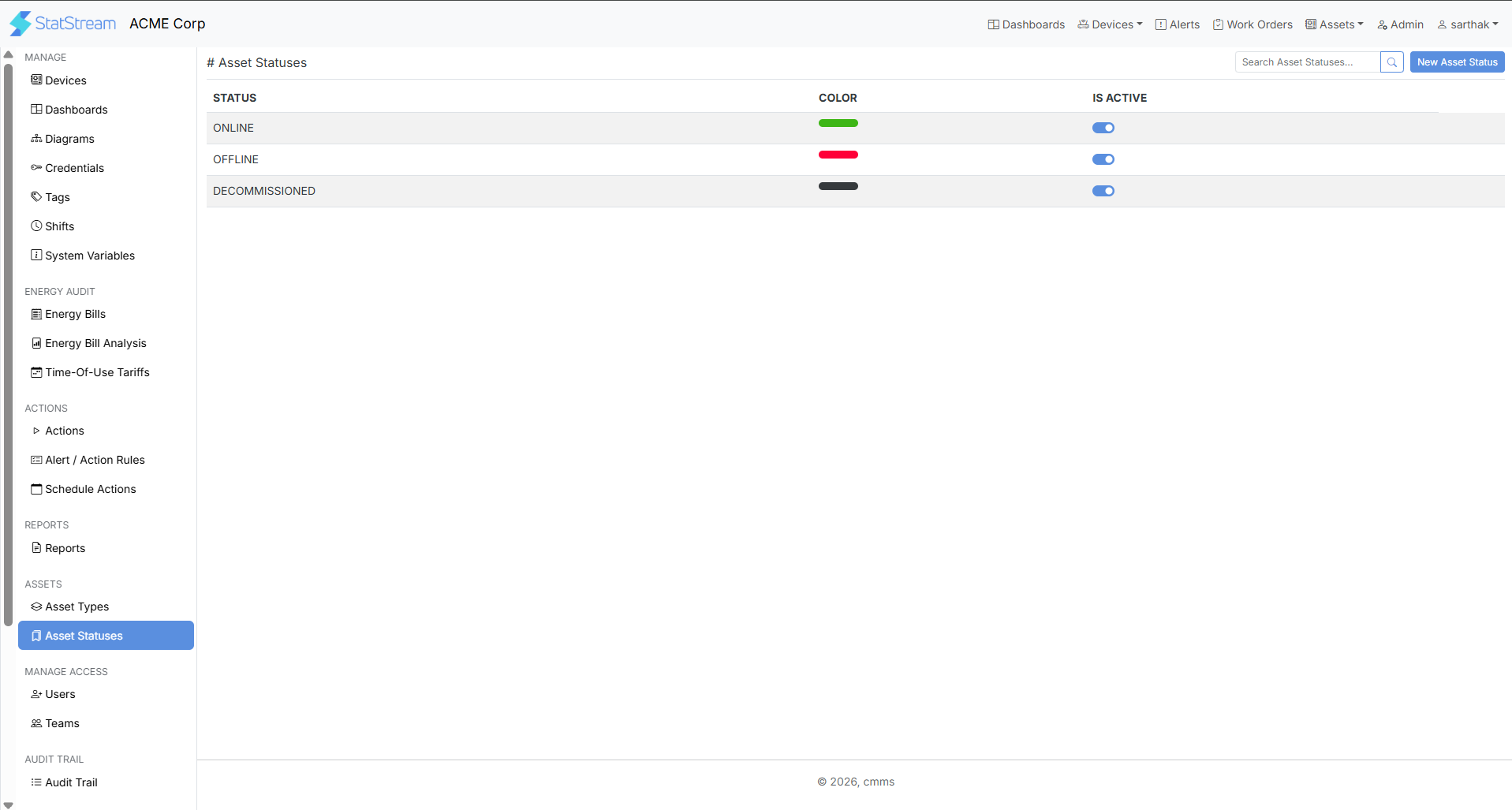
Create an Asset Status
Section titled “Create an Asset Status”Follow these steps to create a new asset status:
- Navigate to Admin from the top navigation bar.
- In the left sidebar, under the Assets section, click Asset Statuses.
- Click New Asset Status in the top-right corner.
- Enter the required information:
- Status Name (e.g., Online, Offline, Under Maintenance, Decommissioned)
- Status Color (Select a color to visually identify the status)
- Click Save to create the asset status.
Create Asset Status
Section titled “Create Asset Status”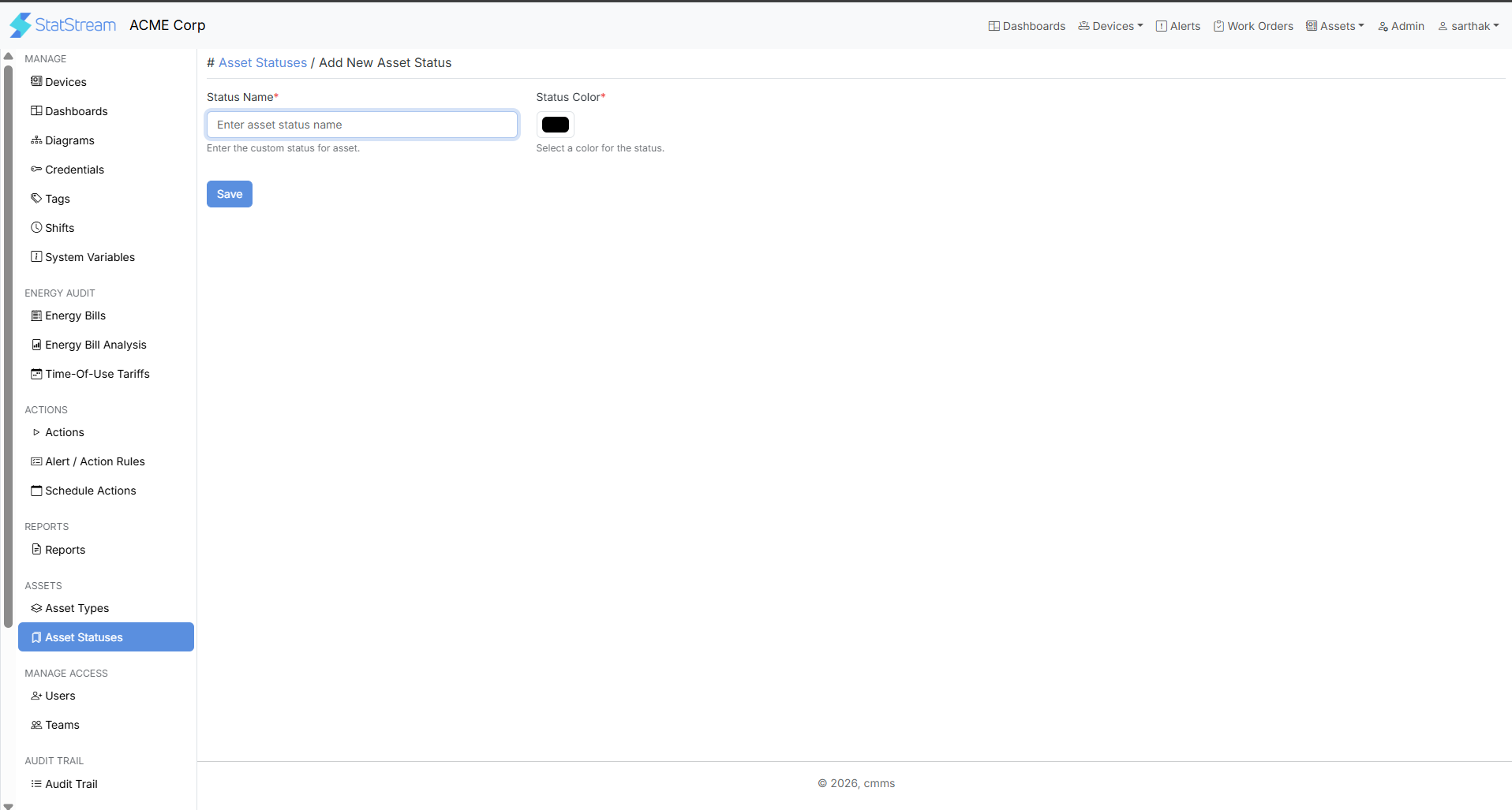
Best Practices
Section titled “Best Practices”For effective asset status management:
- Use clear and meaningful status names.
- Assign distinct colors to make statuses easy to identify.
- Avoid creating duplicate statuses with the same meaning.
- Keep status names consistent across your organization.
- Periodically review and update statuses as operational requirements change.