
Alert / Action Rules
An Alert / Action Rule defines the condition StatStream should watch for, and which Actions to run automatically when that condition is met. A rule connects a variable, a comparison condition, and a threshold value to one or more Actions you’ve already created.
The Alert / Action Rules List
Section titled “The Alert / Action Rules List”The Alert / Action Rules list (Alerts & Actions → Alert / Action Rules) shows every rule in your workspace.
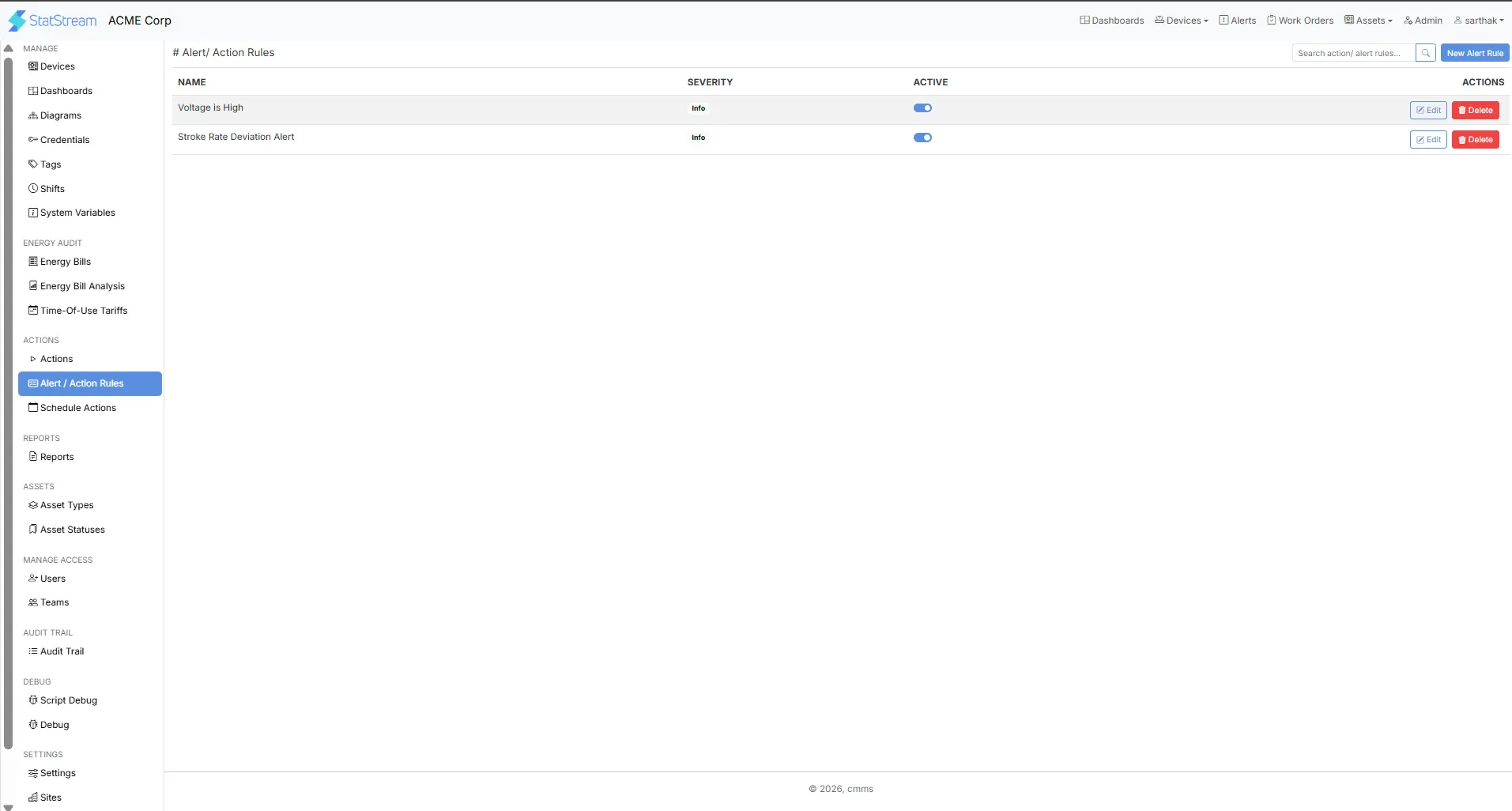
| Column | Description |
|---|---|
| Name | The rule’s name (its Rule Name / Alert Subject). |
| Severity | The alert severity configured for the rule (e.g., Info). |
| Active | A toggle to enable or disable the rule without deleting it. |
Use the Search action/ alert rules… box to find a specific rule by name, or click New Alert Rule (top-right) to create one. Each row also has Edit and Delete controls.
How Alert / Action Rules Work
Section titled “How Alert / Action Rules Work”- Click New Alert Rule (top-right of the Alert / Action Rules list).
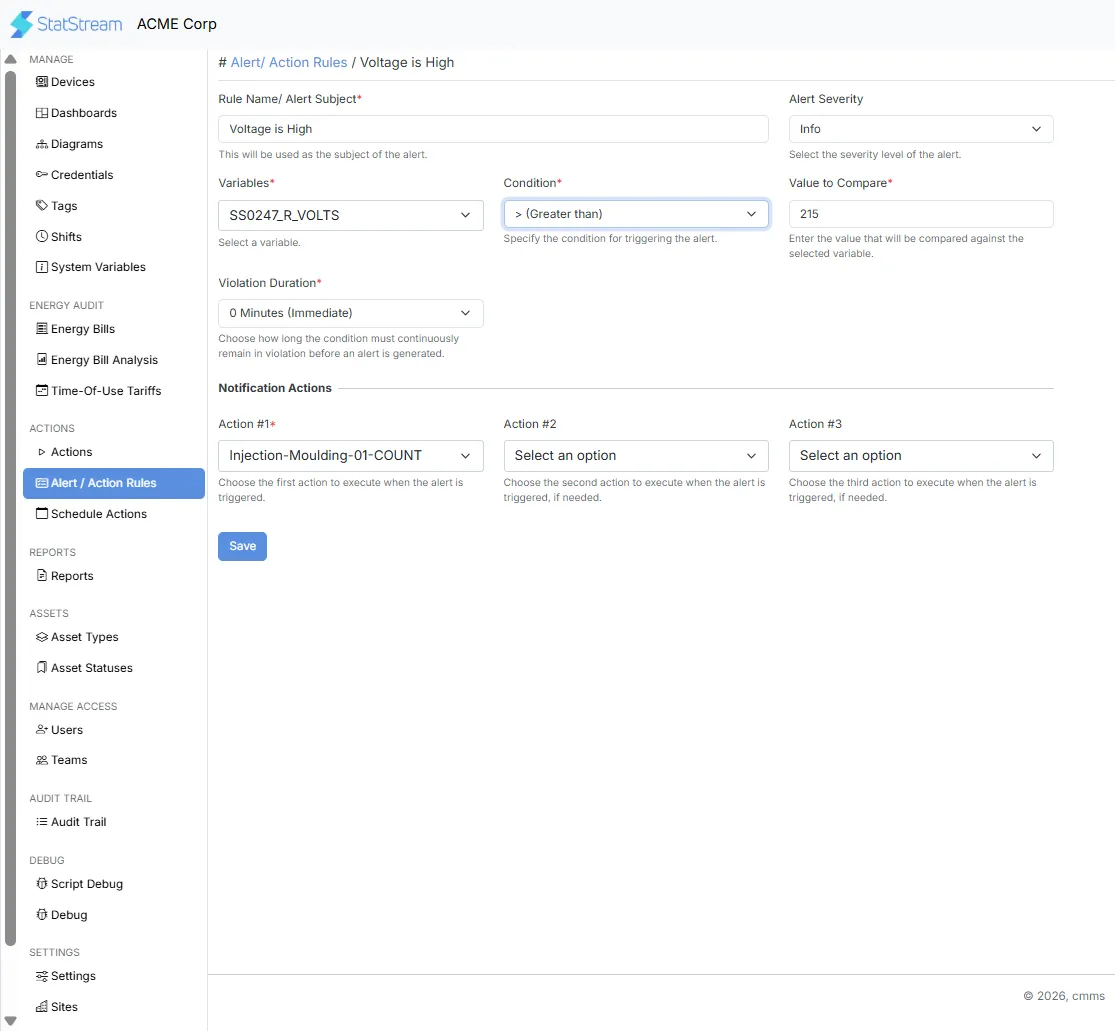
- Give it a Rule Name / Alert Subject and select an Alert Severity.
- Select the Variable to monitor, the Condition to check it against, and the Value to Compare.
- Set a Violation Duration — how long the condition must remain true before the alert fires.
- Choose up to three actions to run when the rule is triggered.
- Click Save. StatStream now monitors the condition continuously and runs the selected actions whenever it’s met.
Configuration
Section titled “Configuration”| Field | Description |
|---|---|
| Rule Name / Alert Subject | The name of the rule; also used as the subject line of the alert. |
| Alert Severity | The severity level of the alert (e.g., Info). |
| Variables | The variable to monitor. |
| Condition | The comparison condition that triggers the alert (e.g., Greater than). |
| Value to Compare | The threshold value compared against the selected variable. |
| Violation Duration | How long the condition must continuously remain in violation before an alert is generated. |
| Action #1 | The first action to execute when the alert is triggered. |
| Action #2 | The second action to execute when the alert is triggered (optional). |
| Action #3 | The third action to execute when the alert is triggered (optional). |
- Up to three actions can be attached to a single rule; only Action #1 is required.
- Violation Duration helps avoid false alarms from brief spikes — a rule set to “0 Minutes (Immediate)” fires as soon as the condition is met, while longer durations require the condition to hold continuously before triggering.
Typical Use Cases
Section titled “Typical Use Cases”Alert / Action Rules can be used to:
- Send an email or Slack notification when a sensor variable crosses a threshold.
- Trigger an aggregation or asset-status-change action automatically when a condition is met, without a person in the loop.
- Chain multiple actions together — for example, notifying a team and updating an asset’s status from the same rule.
- Reduce false alarms from brief spikes using Violation Duration.
- Temporarily disable a rule during planned maintenance using the Active toggle, without losing its configuration.