
Overview
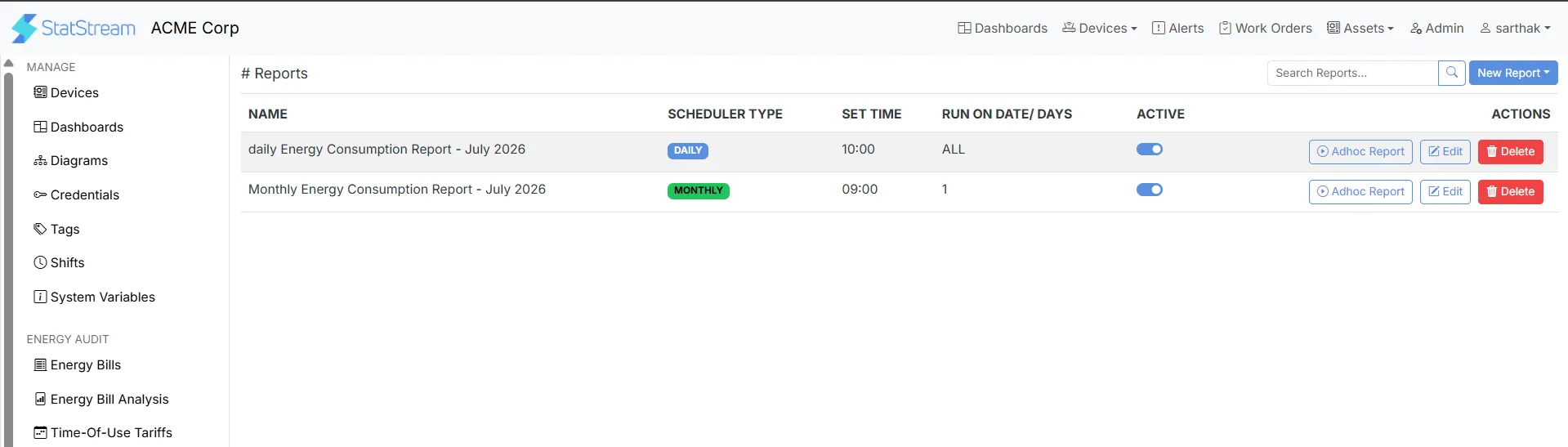
Reports let you schedule automatic exports of your variable data, delivered straight to your inbox — no need to log in and pull data manually. Each report runs on its own schedule, pulls the variables you choose, and emails the result as a file, such as an Excel file, to one or more recipients.
This is useful for keeping stakeholders informed without giving them platform access — a plant manager can get a daily summary, a finance team can get monthly consumption figures, or a shift supervisor can get a report after their shift ends.
Report Types
Section titled “Report Types”StatStream offers three types of scheduled reports, each suited to a different reporting cadence:
Daily Report Sends a report every day using a configurable rolling window of recent data. Best for day-to-day monitoring and operational updates.
Monthly Report Sends a report for a selected month's data. Best for periodic summaries, energy consumption reviews, and billing-cycle reporting.
Shift Report Generates a report based on a selected shift's configured start and end times. Best for shift-wise production and performance tracking.
Creating a Report
Section titled “Creating a Report”To create a report:
- Click Admin from the top-right navigation bar.
- Select Reports from the left navigation menu.
- Click New Report in the top-right corner.
- Choose the required report type.
- Configure the report settings and recipients.
- Click Save to create the report.
For detailed configuration instructions, select the required report type above.